

⚡ Ultimate Alt Code Generator
Click any symbol to copy or add it to your text builder. Find decimal alt codes, hex values, and HTML entities instantly.
An Alt code generator turns decimal codes into usable special characters, but its value extends beyond convenience: I use it to bridge Windows, numeric keypad, older workflows, and Unicode when ordinary keyboard input falls short.
The practical advantage appears when typing foreign letters, mathematical signs, symbols, or punctuation feels cumbersome. Instead of searching menus, you enter a defined code sequence, perform character insertion, and continue your writing with less interruption.
Table of Contents
What Are Alt Codes / About Alt Codes
Alt codes are keyboard shortcuts that represent characters through numbers, typically entered with the Alt key, digits, and a physical numeric keypad. They let Windows users insert symbols without opening menus or searching character charts.
Behind the shortcut is a character conversion system: a numeric sequence is interpreted through code pages or application rules, then converted into the requested glyph. In practice, behavior can vary across systems and compatibility settings.
Also Read: Arabic Font Generator
How To Use / How To Type Alt Codes
To type using Alt Codes, place the cursor where needed, turn on Num Lock, hold the left Alt key, and enter desired digits through the number pad. Release Alt to insert the symbol successfully online.
Experienced users often test a number code in the target application first, because keyboard entry can vary by system. For reliable character representation, keep the Num Lock state visible before pressing the final digit sequence.
How It Works
At its core, an Alt Code Generator maps requested symbols to Windows Alt-key combinations, then reproduces the matching character through numeric keypad input. The interactive tool reduces manual code-chart searches by displaying selectable sequences accurately.
In practice, I’ve found the useful part is verification: click a result, copy it, and test special characters across Windows code pages before publishing. This reveals character compatibility issues that charts can hide reliably early.
Usage Example
For a quick usage example, type a short phrase, hold Alt, and enter the matching digits on Windows. I often test degree symbols and check marks first because their output is immediately recognizable during troubleshooting.
Another practical case is testing music notes beside Greek letters in a profile or document. The Unicode characters can be copied directly, then compared across applications to check compatibility, rendering, and keyboard behavior before publication.
Common Alt Codes / Examples By Category
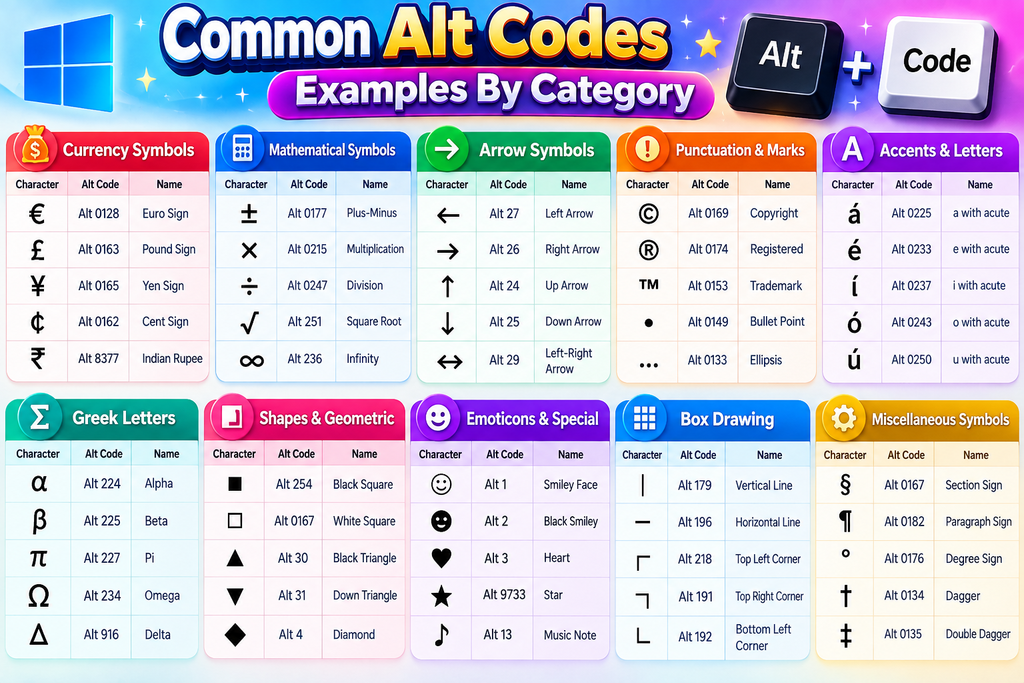
Common Alt Codes are easier to remember when grouped by purpose. For instance, a check mark uses ALT + 251, while a degree symbol uses ALT + 248; these character codes demonstrate Windows entry methods.
Category examples also include a copyright symbol with ALT + 0169, plus sigma values such as ALT + 229 and ALT + 228. Musical symbols, special symbols, and broader symbol categories expand practical choices for users.
Alt Code For Check Mark
For the check mark ✓, the Unicode character code is U+2713. In Word, type 2713 and press Alt+X; this inserts the symbol without relying on a legacy code-page mapping that may vary between applications today.
For classic Alt-key entry, Windows may accept Alt+10003 through the Windows numeric keypad in compatible environments; however, resulting combinations depend on application support. I usually keep Unicode handy when direct entry is unreliable during publishing.
Alt Code For Degree Symbol
To type the degree symbol, use the Alt key with Num Lock enabled, then enter 0176 through a dedicated number pad. Release Alt afterward; this classic keyboard method inserts the character directly into text fields.
For a laptop, the same entry may depend on Fn support or keyboard hardware, and OEM behavior can differ. Check code-page compatibility and code-page settings when legacy software shows a different character onscreen than expected.
Alt Code For Copyright Symbol
For the copyright symbol, I usually use the native method, holding Alt while entering the digits 0169 through the physical keypad. Release Alt afterward, and the copyright sign appears instantly in compatible Windows applications reliably.
On some laptops, the laptop limitations matter because a number row may not behave like a numeric keypad. I often recommend testing the character in Microsoft Word or Google Docs before using it elsewhere online.
Alt Code For Sigma
For Sigma, Windows commonly uses holding Alt on a standard keyboard, then entering 228 through the number row. This native method inserts uppercase Σ directly when the system supports expected code-page compatibility on Windows systems.
From testing, Sigma fits mathematical symbols, scientific notation, and technical formulas, while lowercase σ can be entered separately. ANSI codes, OEM code pages, and legacy environments can affect results, so verify the character before saving.
Alt Code For Music Notes
On Windows, music note symbols can be entered with numeric Alt codes using the numeric keypad. Alt+13 produces the eighth note ♪, while Alt+14 creates the beamed notes ♫ for quick insertion, especially for text.
These shortcuts are handy for headings, profiles, messages, and documents when the symbols are not visible on your keyboard. Keyboard methods provide practical access, and Num Lock helps ensure consistent entry across systems on Windows.
Tips / Things To Know
A useful habit is to verify the character before relying on it: keyboard combinations can vary by system, while digits entered through a numeric keypad may produce different results from top-row numbers in practice consistently.
For dependable results, keep code pages and legacy systems in mind, especially when an older application behaves differently. On modern platforms, test unusual characters in the actual textbox, preview, document, or website before publishing them.
Symbol Test Box
A preview area with character selection lets you check a symbol before copying a result. I use this step to verify glyphs, spacing, alignment, and symbol insertion before publishing content online.
Test several symbols across your textbox, then copy the displayed character into documents or online environments. Checking Unicode compatibility first helps reveal rendering differences, missing glyphs, or unexpected spacing on specific platforms before final use.
Interactive Generator Tool Description
An interactive Alt Code Translator turns ordinary text or digits into symbols through a guided translator workflow, letting users test keyboard input, paste, drag, and preview glyphs before copying results into everyday documents with confidence.
From symbol test box sessions to experimental characters, I use the generator like a practical lab, checking character testing, examples, web frameworks, and Alt-key usage so each selected symbol behaves predictably across writing environments reliably.
When To Use This Translator
I use an interactive generator when I need symbols quickly, especially during technical writing, design, or troubleshooting. It helps me select characters directly instead of memorizing codes or searching scattered reference tables for common work.
For repeated tasks, I prefer tools that let me move characters naturally and require no signup. This approach reduces interruptions, keeps symbol selection practical, and makes testing unfamiliar Alt codes easier before inserting them elsewhere.
Also Read: Creepy Text Generator
Symbol Categories List
An effective symbol list groups accented letters, currency symbols, mathematical symbols, and hearts separately, so an Alt sequence can be found quickly without scanning unrelated entries. This makes everyday lookup more practical for routine work.
Beyond familiar marks, a detailed category system includes arrows, trademark symbols, foreign characters, box-drawing characters, and miscellaneous characters, helping users match the right character family before entering a code or copying a symbol with confidence.
Unicode And Alt Codes
Unicode symbols and Alt codes serve similar goals, yet their underlying systems differ. Unicode identifies glyphs through standardized code points, while Windows Alt-number sequences provide a numeric keyboard route for inserting supported marks more reliably.
For reliable troubleshooting, character codes should be treated as values tied to specific encoding or input conventions. Knowing these distinctions makes special-symbol entry easier across editors, documents, browsers, and other compatible Windows applications in practice.
What Are Unicode Superscript Characters?
Unicode superscript characters are specialized characters that appear above the normal baseline, creating raised text within ordinary lines. They are useful in technical formulas, references, exponents, and compact notation without traditional formatting controls during editing.
From my experience checking symbols across editors, the main value is portability: a superscript character behaves like text rather than a styling command, making exponents, ordinal indicators, and mathematical expressions easier to paste into documents.
Do Unicode Superscript And Subscript Characters Work Everywhere?
Unicode superscript and subscript characters may look universal, yet support varies. In document formatting, scientific notation, and technical symbols, raised characters often survive, while web markup can require different handling across browsers and apps reliably.
For academic writing, scientific equations, mathematical expressions, and formulas, Unicode is practical; however, platforms may normalize characters unexpectedly. I test normal text first, then use usernames or decorative social-media bios carefully before publishing publicly online.
What Is The Difference Between Unicode And HTML Superscript?
Unicode superscript uses encoded characters that exist as individual text symbols, while HTML superscript uses markup to raise ordinary characters visually. This distinction matters when selecting small glyphs for portable text across more text fields.
For mathematical notation or technical symbols, Unicode can preserve character identity during copying, while HTML relies on browser rendering. When inserting symbols, HTML offers layout control; Unicode generally travels better outside webpages without special markup.
How Do I Type Subscript Using Alt Codes?
On Windows, I usually enter a subscript character through an Alt code only when the character has a defined numerical sequence. Hold Alt, type the digits on the numeric keypad, then release Alt to finish carefully.
The practical trick is knowing that the command must convert characters correctly, especially for keyboard-unavailable symbols. Laptop limitations can interfere with numeric input, so I test the subscript immediately inside the document or application itself.
Can I Use Unicode Symbols In Google Docs And Microsoft Word?
Yes, Unicode symbols can be inserted directly into Google Docs and Microsoft Word, where formatting usually remains editable. Their appearance depends on the selected font, baseline, and support for each character across the document environment.
For superscript or subscript, Unicode characters may sit as raised text instead of using HTML or markup. In practice, document formatting is independent from web markup, so copied symbols can retain their character identity cleanly.
How Do You Use Alt Codes?
To use Alt codes, place the cursor where the character belongs, hold Alt, and enter the numeric sequence on the numeric keypad. I regularly test the result immediately because keyboard layouts can change behavior slightly.
On laptops, check whether an embedded keypad or Fn keys are required; macOS handles character entry differently from Windows. For reliable work, keep the reference code nearby and confirm the symbol before publishing your text.
Conclusion
In practice, I judge results by testing foreign characters on real keyboards, then confirming code 251 and heart symbol output before trusting a copied character in notes, forms, or software. This catches unexpected platform differences.
For broader work, I verify copyright, 0169, 0176, code 248, lowercase sigma, uppercase sigma, and Greek letter entries, because consistent rendering matters more than memorizing numbers alone, during everyday copy-and-paste work across common applications today.
Can Alt Codes Enter Foreign Characters?
Alt codes remain useful when a keyboard lacks access to foreign characters. Originating from conventions associated with IBM, they let Windows users enter symbols through numeric shortcuts, especially for characters not printed directly on keys.
How Do I Type A Heart Symbol With An Alt Code?
To type an heart symbol or other character, place the cursor where needed, hold Alt, enter the relevant number, then release Alt. The exact result depends on the selected application, keyboard layout, and character support.
What Is The Alt Code For A Check Mark?
A common check mark uses code 251, while the degree symbol can use code 248 or 0176. These shortcuts illustrate how numeric entry provides quick access to frequently requested characters for routine, repeated daily tasks.
What Is The Alt Code For Copyright?
For a copyright character, Windows users often enter code 0169; the resulting copyright sign may display differently across fonts. When appearance matters, verify the symbol after entry rather than assuming every application renders it identically.
How Can I Type Greek Sigma Characters?
Greek characters illustrate why alt-code references can be helpful: lowercase sigma, uppercase sigma, and each Greek letter may require different methods depending on software. Numeric shortcuts, Unicode input, or symbol menus can all provide solutions.


[…] Also Read: Alt Code Generator […]